How to set up Ravenous Horde on a dedicated server using Ubuntu with Docker
Requirements
What Hamster recommends:
– 2 Cores
– 4 GB RAM
– 10 GB SSD
From the Dev:
When renting a VPS, make sure you have at least 2vCPU’s. A very strong single one might work too, but can’t confirm. At least 4GB RAM is needed too, I have plans to reduce this to about 2GB in the future. And you’ll need ~4GB of room to install the tools.
Firstly, when you start the server for the first time, you want to update some things, if they are not up-to-date.
You can use the command below.
apt update && apt upgrade -y
After that, you most likely need to open those ports on the server:
On both TCP and UDP: ports 7770 – 7778 (Ravenous Horde communication)
On both TCP and UDP: ports 27000 – 27100 (Steam communications, such as their master server)
					sudo ufw allow 7770:7778/tcp
sudo ufw allow 7770:7778/udp
sudo ufw allow 27000:27100/tcp
sudo ufw allow 27000:27100/udp
sudo ufw reload
sudo ufw status
Done?
Nice!
Now we want to install docker! They have a guide, so you should check their guide out, because I can’t update this page every time they update some command.
https://docs.docker.com/engine/install/ubuntu/
Now that docker is installed, you want to start the container with Steamcmd. I made the docker command with ports, because the SteamCMD site doesn’t have it.
					docker run -it --name steamcmd \
    -p 7770-7778:7770-7778/tcp \
    -p 7770-7778:7770-7778/udp \
    -p 27000-27100:27000-27100/tcp \
    -p 27000-27100:27000-27100/udp \
    cm2network/steamcmd bash
When the container runs, you normally get thrown into the console of the container. If this does not happen automatically, try out this command: docker exec -it steamcmd /bin/bash
If you are in the console, you can start the steamcmd.sh and begin with setting an installation path, login in as anonymous and then installing the server files. After that, run the Server.exe in the LinuxServer directory ONCE.
You might also want to change the install directory to something else.
If steamcmd did start, skip the first command. Otherwise (even if unsure), use the next command!
./steamcmd.sh
force_install_dir RH
login anonymous
app_update 2558040
exit
					cd RH/LinuxServer
ls
./Server.exe
Wait a bit until those messages came:
Server is VAC Secure!
Game server SteamID:xxx…
Game initialization completed on IP: 1.23.456.789
Loaded map: MapX
Then stop the server with CTRL+C / STRG+C
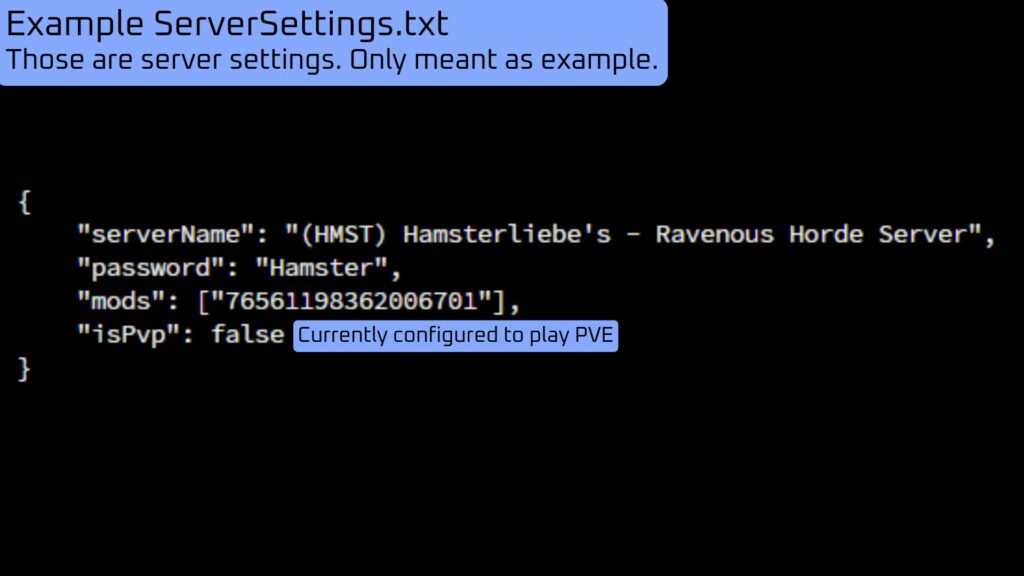
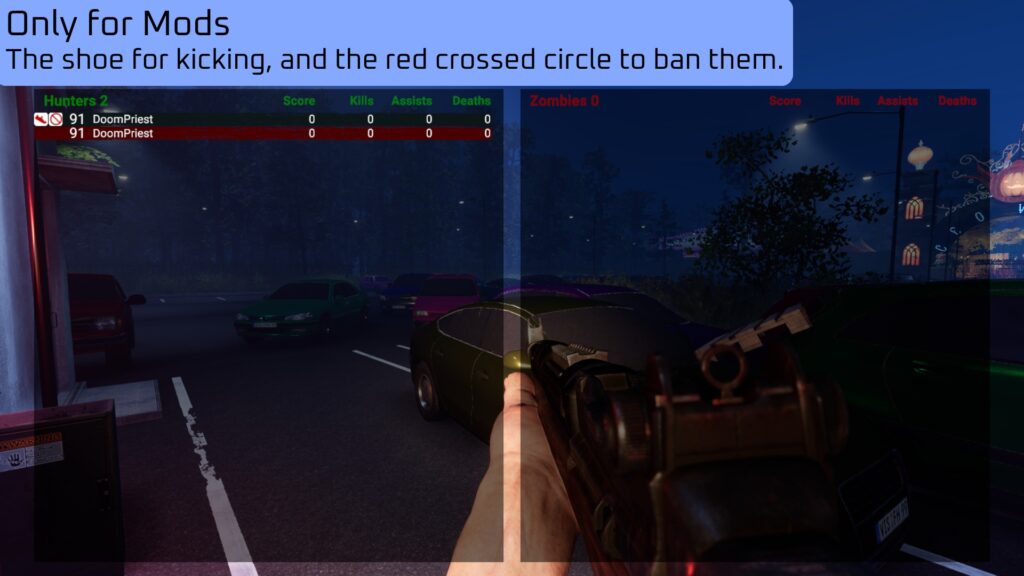
Wait until the server stops, then edit the Server Settings. Change the server name, set (if you want) password, add a moderator for the server.
For the nano command, you still have to be in the RH/LinuxServer directory.
nano ServerSettings.txt
Now save everything and start the server again. This time without a console output.
nohup ./Server.exe -batchmode -nographics > /dev/null 2>&1 &
Now the server should be finished and run, until it either crashes or you stop it.
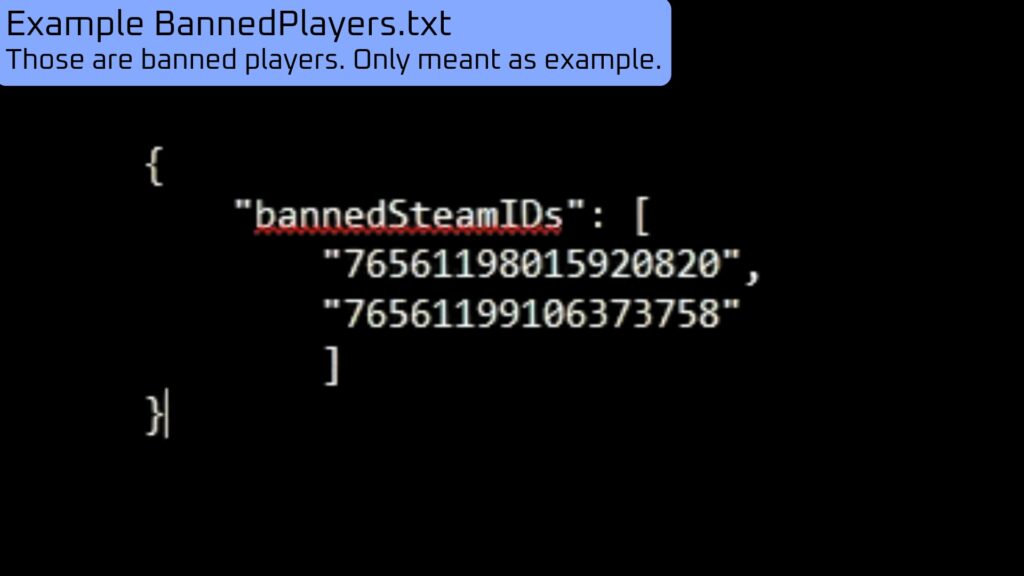
Links, Commands and example pictures
As a moderator on a server, you can also type !skip_map and !reload_map in the chat box to skip and reload the current map.
If you are not a moderator, nothing will happen!
!skip_map
!reload_map
Updating the server files
Updating the game files is nearly the same process. You have to start steamcmd, set the force_install_dir, login as anonymous, update the app, go into the cd RH/LinuxServer again and start the server with the nohup command (or for testing with the normal command!)
docker stop steamcmd
apt update && apt upgrade -y
docker start steamcmd
docker exec -it steamcmd /bin/bash
./steamcmd.sh
force_install_dir RH
login anonymous
app_update 2558040
exit
cd RH/LinuxServer
nohup ./Server.exe -batchmode -nographics > /dev/null 2>&1 &
Notice from Hamster
Dieser Text wurde mit Liebe geschrieben und soll als Hilfe dienen.
Dieser Post hat keine Werbung, da ich das Projekt mit Herzen unterstütze.
Falls dir etwas geholfen hat, würde ich mich über eine Rückmeldung von dir über Discord oder andere Wege freuen.